
So i was testing some stuff with the Authentication on the ASA Firewall and the AnyConnect client in the last days. So i feel it is time to write things down a little bit.
First i discovered we have the same problem with Windows 7 Firewall. Windows is not detecting the Interface so the Firewall do not say here we are part of the domain:-( Sad very Sad. But as i described here, there is a workaround but this is not supported by Cisco in any way.
But anyhow, we have to move to the AnyConnect Client to get VPN running with WWAN Cards.
So lets begin with a basic setup, only localusers and connect to the ASA with the AnyConnect Client.
No complex things, just connectivity. So we will start here with the configuration.
In the next posts we will go to the more complex things.
- Basic Configuration (see below)
- How to authentication AnyConnect VPN against Tacacs+
- How to authentication AnyConnect VPN against RADIUS
- How to use Radius/Tacacs+ and Certificate based Authentication for AnyConnect VPN
- Authentication before Login
A Basic Configuration
Down below you will find a more complete example to use for configuration, be aware the examples a maybe collapsed to save space.
The AnyConnect Client
First you need the AnyConnect Client Package from the Cisco Download Website, either as predeploy or as web install package for your platform. We will use Windows 7 (x64) on our new clients so we will test in the first step the Windows packages.
Assuming we are using Version 2.5.1025, the Package is called anyconnect-win-2.5.1025-k9.pkg.
To install the Package on the ASA you can do following steps on the CLI:
ASA# copy tftp://192.168.0.2/anyconnect-win-2.5.1025-k9.pkg flash:
Address or name of remote host [192.168.0.2]?
Source filename [anyconnect-win-2.5.1025-k9.pkg]?
Destination filename [anyconnect-win-2.5.1025-k9.pkg]?
Accessing tftp://192.168.0.2/anyconnect-win-2.5.1025-k9.pkg...!!!!!!!!!!!
Writing file disk0:/anyconnect-win-2.5.1025-k9.pkg...!!!!!!!!!!!
4436544 bytes copied in 37.750 secs (119906 bytes/sec)
ASA#
Then make the package usable by the webvpn service:
ASA# configure terminal
ASA(config)# webvpn
ASA(config-webvpn)# ! The regex will make the selection of the platform specific package much faster.
ASA(config-webvpn)# svc image disk0:/anyconnect-win-2.5.1025-k9.pkg 1 regex "Windows NT"
ASA(config-webvpn)# exit
ASA(config)# exit
ASA#
The installation via the ASDM-IDM UI is as easy. 😉 Go to “Configuration > Remote Access VPN > Network (Client) Access > AnyConnect Client Settings” and follow the pictures.
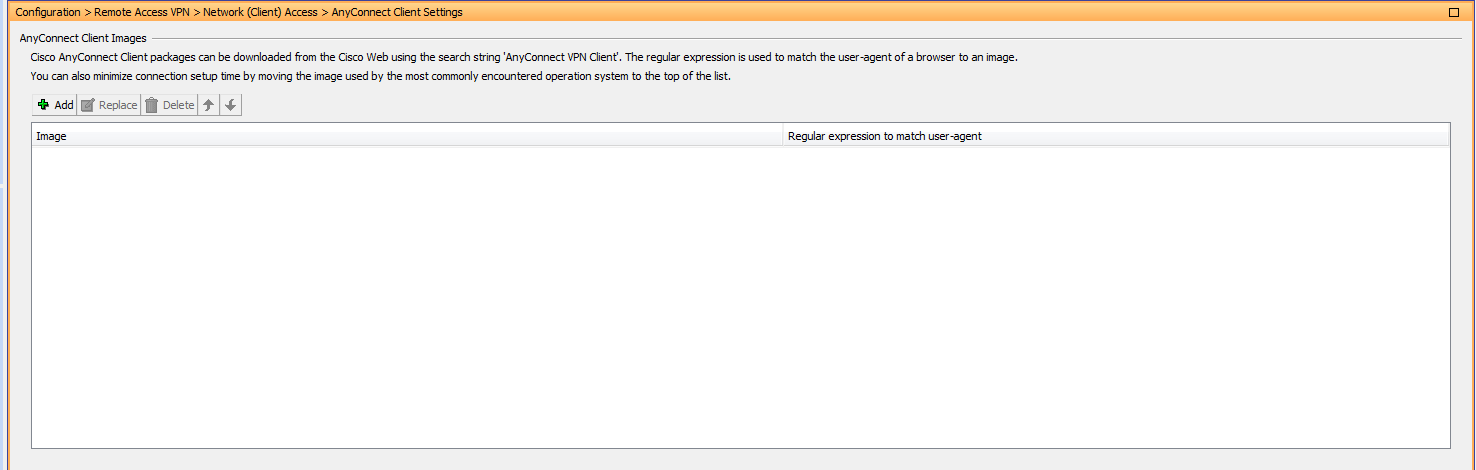
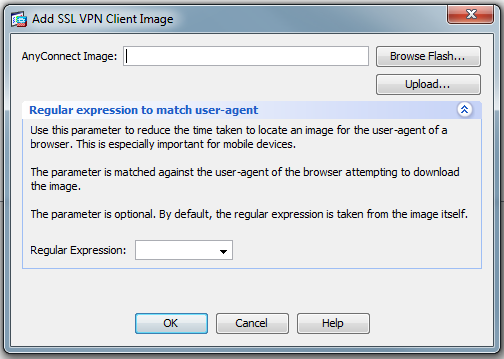
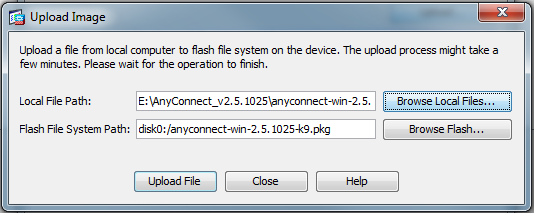
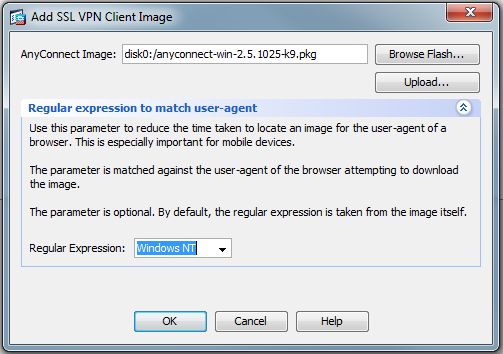
To install the Predeploy package execute the msi file, in my example it is anyconnect-win-2.5.1025-k9.msi.
The Cisco ASA Configuration
Enabling the WebVPN Service
Assuming we have called the interface pointing to the Internet “Outside”.
ASA# configure terminal
ASA(config)# webvpn
ASA(config-webvpn)# enable Outside
ASA(config-webvpn)#  svc enable
ASA(config-webvpn)# exit
ASA(config)# exit
ASA#
AnyConnect Essentials
We are using the AnyConnect essentials only;-) Have your toughts.
ASA# configure terminal
ASA(config)# webvpn
ASA(config-webvpn)# anyconnect-essentials
ASA(config-webvpn)# exit
ASA(config)# exit
ASA#
Client IP Addresses
For the moment we use a local pool and for testing we will only use 16 addresses it is enought;-)
ASA# configure terminal
ASA(config)# ip local pool SSLClientPool 10.2.9.240-10.2.9.255 mask 255.255.255.240
ASA(config)# exit
ASA#
The client policy
ASA# configure terminal
ASA(config)# group-policy SSLCLientPolicy internal
ASA(config-group-policy)#exit
ASA(config)# group-policy SSLCLientPolicy attributes
ASA(config-group-policy)# banner value Welcome to the MyVPN Service
ASA(config-group-policy)# dns-server value 192.168.10.1
ASA(config-group-policy)# vpn-tunnel-protocol svc
ASA(config-group-policy)# default-domain value example.com
ASA(config-group-policy)# address-pools value SSLClientPool
ASA(config-group-policy)# exit
ASA(config)# exit
ASA#
Create a tunnel group
here we define connection parameters.
ASA# configure terminal
ASA(config)# tunnel-group SSLClientProfile type remote-access
ASA(config)# tunnel-group SSLClientProfile general-attributes
ASA(config-tunnel-general)# default-group-policy SSLCLientPolicy
ASA(config-tunnel-general)# exit
ASA(config)# tunnel-group SSLClientProfile webvpn-attributes
ASA(config-tunnel-webvpn)# group-alias SSLVPNClient enable
ASA(config-tunnel-webvpn)# exit
ASA(config)# webvpn
ASA(config-webvpn)# tunnel-group-list enable
ASA(config-webvpn)# exit
ASA(config)# exit
ASA#
How to connect
The complete code
webvpn
 ! The regex will make the selection of the platform specific package much faster.
 svc image disk0:/anyconnect-win-2.5.1025-k9.pkg 1 regex "Windows NT"
 enable Outside
 svc enable
 anyconnect-essentials
 exit
!
ip local pool SSLClientPool 10.2.9.240-10.2.9.255 mask 255.255.255.240
!
group-policy SSLCLientPolicy internal
exit
!
group-policy SSLCLientPolicy attributes
 banner value Welcome to the MyVPN Service
 dns-server value 192.168.10.1
 vpn-tunnel-protocol svc
 default-domain value example.com
 address-pools value SSLClientPool
exit
!
tunnel-group SSLClientProfile type remote-access
!
tunnel-group SSLClientProfile general-attributes
 default-group-policy SSLCLientPolicy
 exit
!
tunnel-group SSLClientProfile webvpn-attributes
 group-alias SSLVPNClient enable
 exit
!
webvpn
 tunnel-group-list enable
exit
!
If you feel this helps a bit or may be not ? Please leave a comment.
 Patrick Marc's Networks
Thanks a lot for the quick howto! Worked great for me. Now that we have clients connecting, is there a way to set up routing so that once they are connected they can still get to the Internet? It seems that they now only have local access once connected.
Cheers!
Matt Juaire
Just enable “same-security-traffic permit inter-interface” on the external interface which will allow the vpn tunneled traffic to exit back out the external interface (hairpinning)
Hi,
I am looking for a way by which i can enable the automatic selection of the client version to be used. For instance, for the people who already have a client installed on their PCs (2.2), i dont want them to download and install the new 2.5 version.
thanks…
As far as i know you can only have the Minimum Version on the ASA for download.
You can have “one” version per supported OS. If you have a higher version on the client no downgrade will initiated.
What you can define is a minimum version and then the option for upgrade.